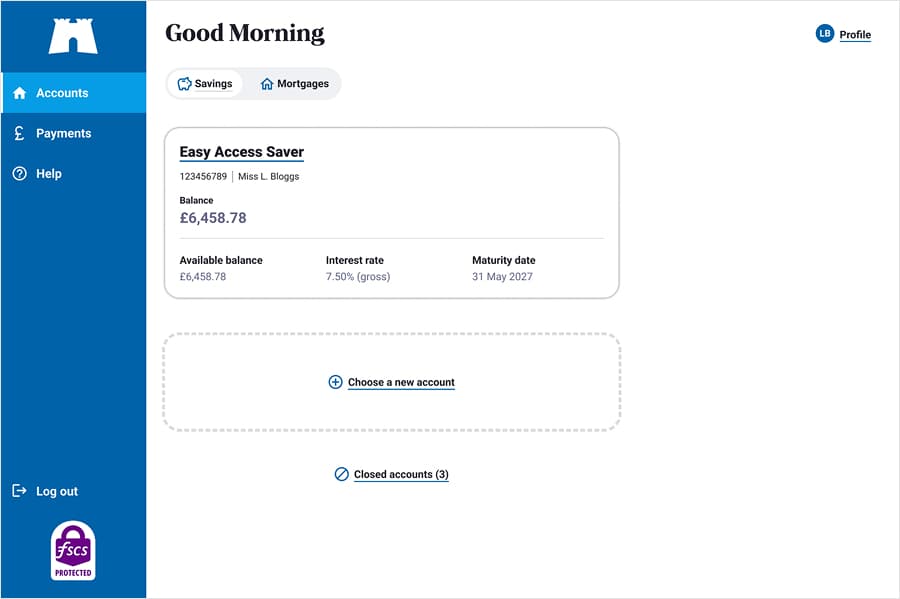
Our step by step guide
Step 1 - Go to the Skipton website
Select 'Login' on the top right corner of this page.
Scammers are using impersonation, fake investment opportunities (including cryptocurrency), and AI-generated calls.
Skipton will never ask you to:
If you are unsure, do not proceed and contact us directly.


Select 'Login' on the top right corner of this page.

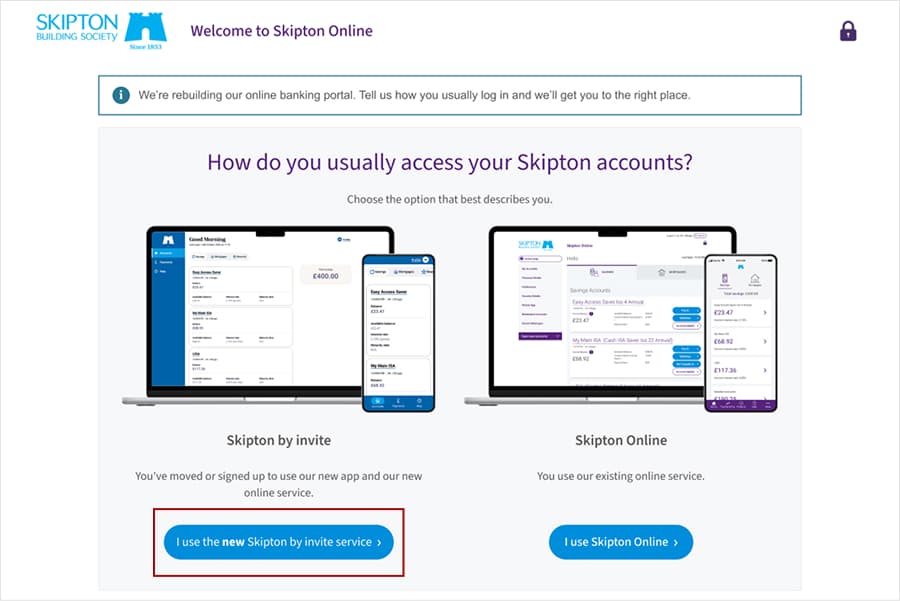
You’ll be asked which Skipton service you use.
If you've moved or signed up to use our new app, choose the option for customers using the new Skipton by Invite service.
If you haven't moved yet and need help to log in on our current Skipton Online website, check our guide.
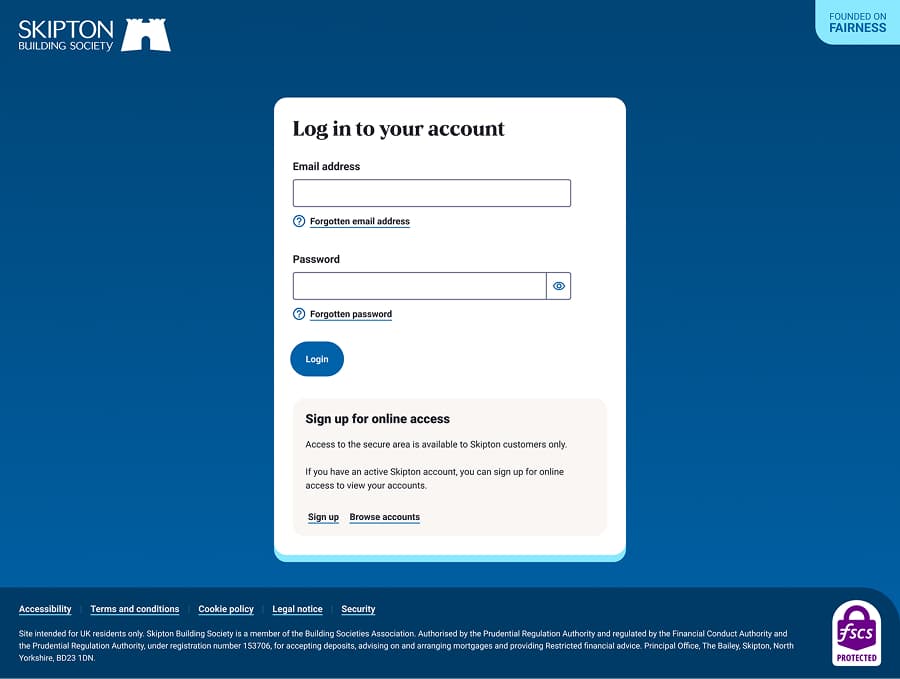
Enter your email address and password, then select ‘Login’.
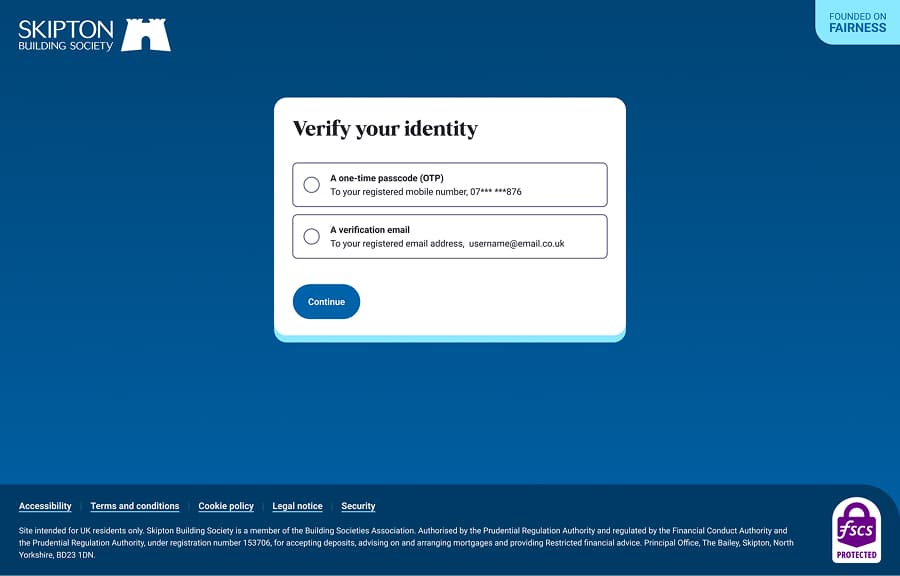
We’ll ask you to confirm it’s you using one of these options:
Once you’ve completed the security check, you’ll be logged in.
You’ll be able to view and manage your accounts in the new Skipton Online.